Handling Incomplete Vendor details
==========
Managing Incomplete Vendor details
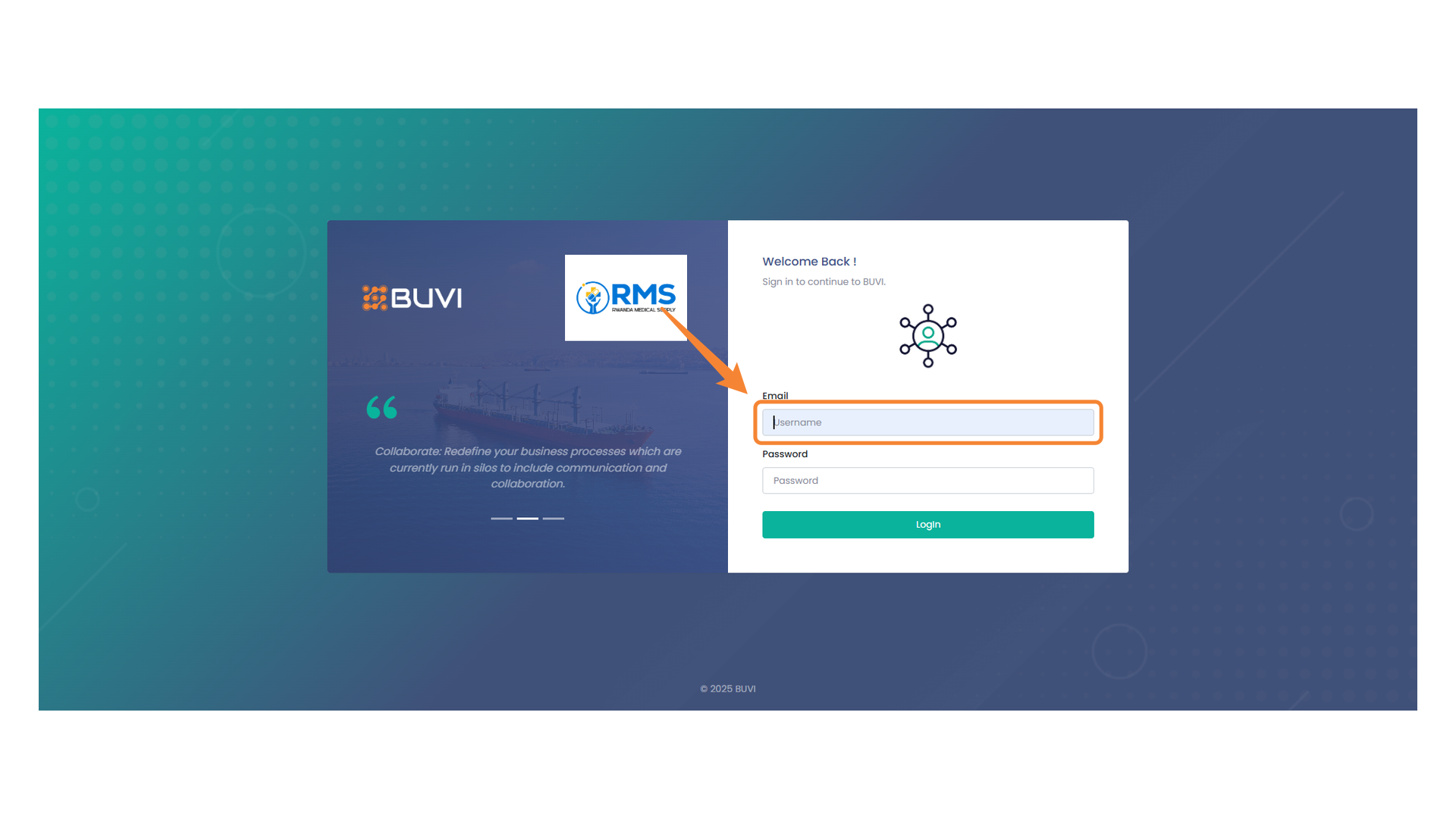
1. Login with Admin user to see the details of the Vendor
Enter your email address here to log in with Admin user.
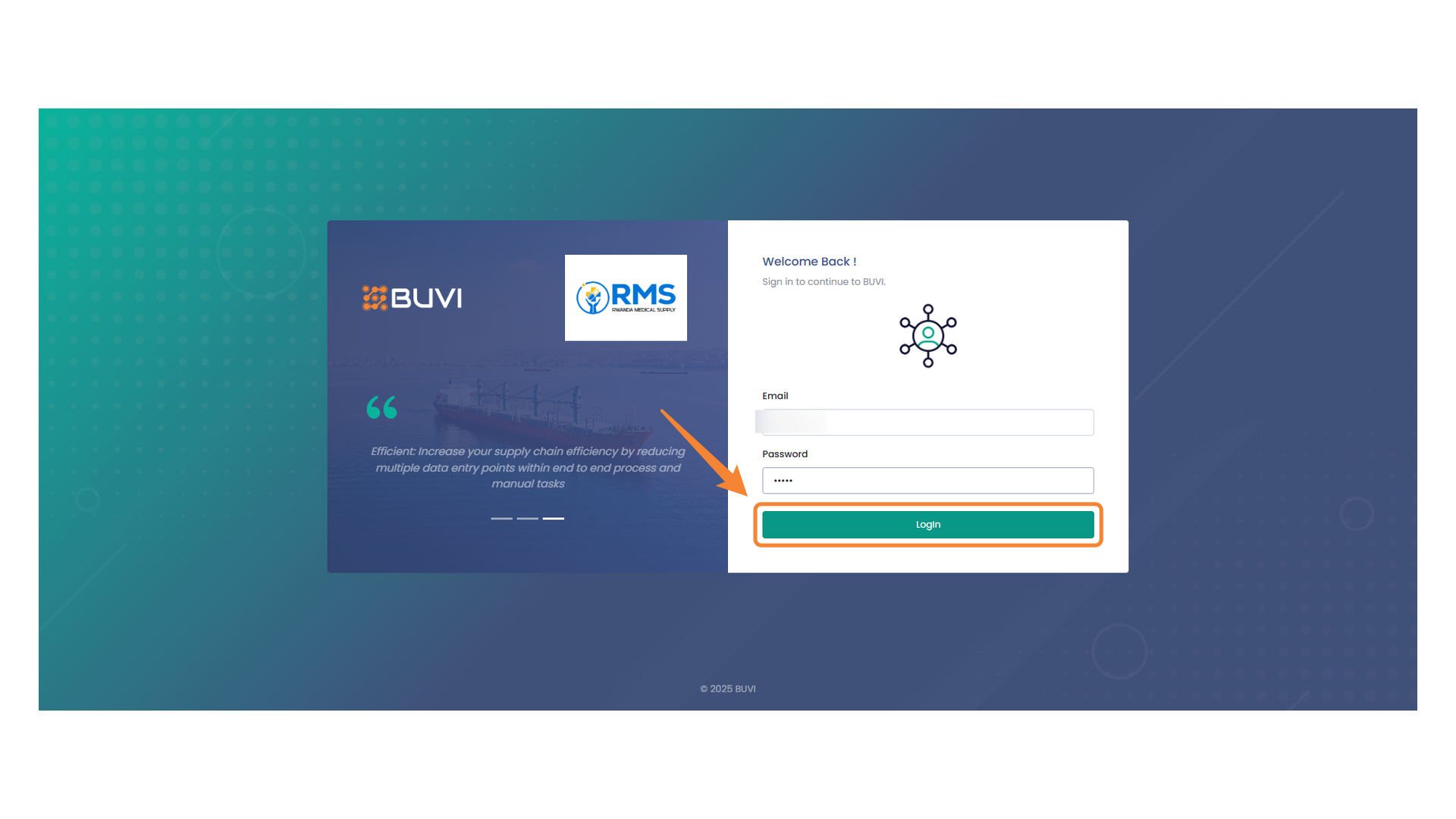
2. Click on Login Button
Click the button to proceed with logging in.
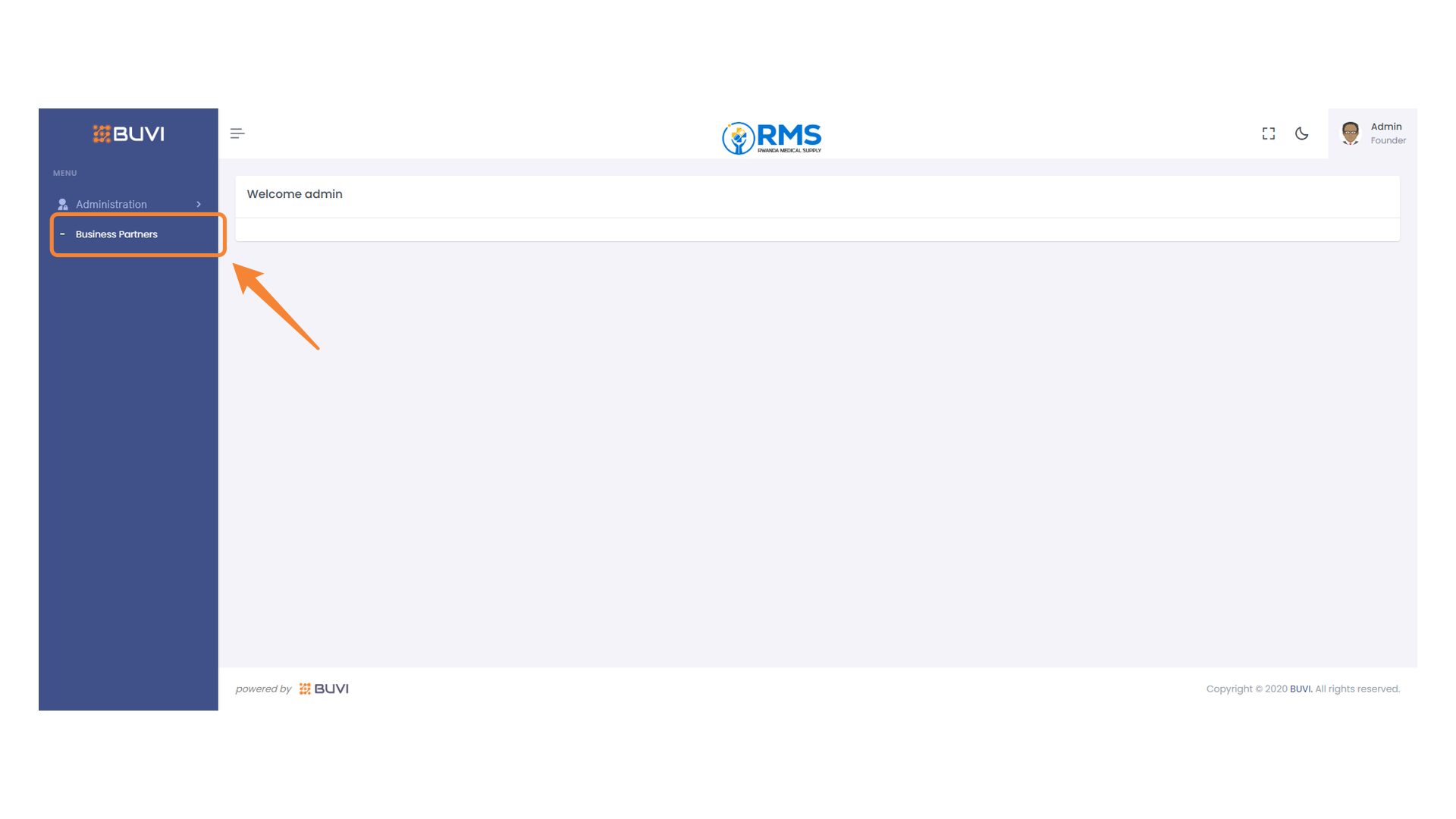
3. Business Partners Section
Navigate to the Business Partners section to manage collaborations.
4. Status Filter
Select Pending/Incomplete status from the dropdown menu to filter the business partners list.

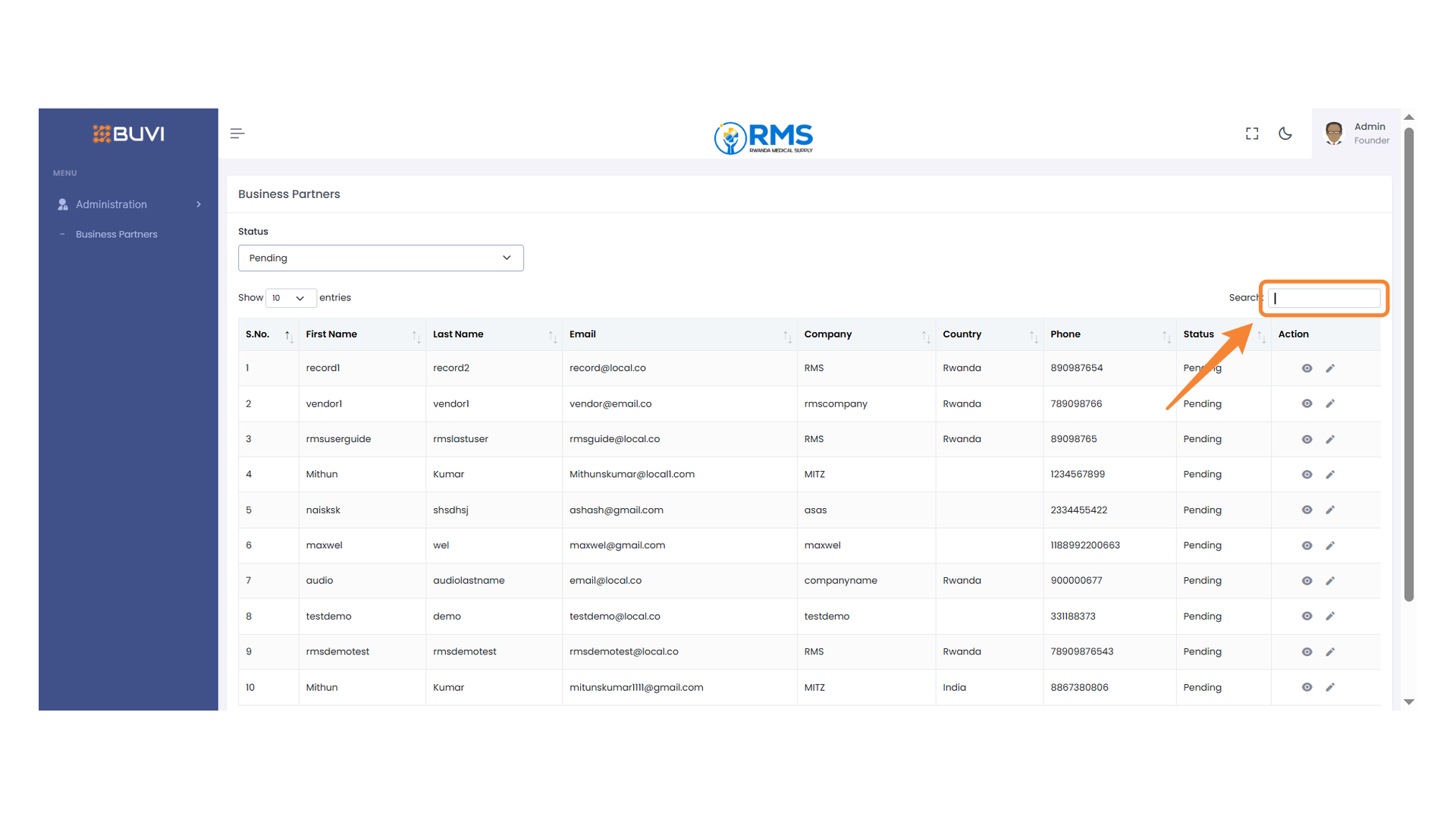
5. Search Bar
Enter your query to filter the results in the table.
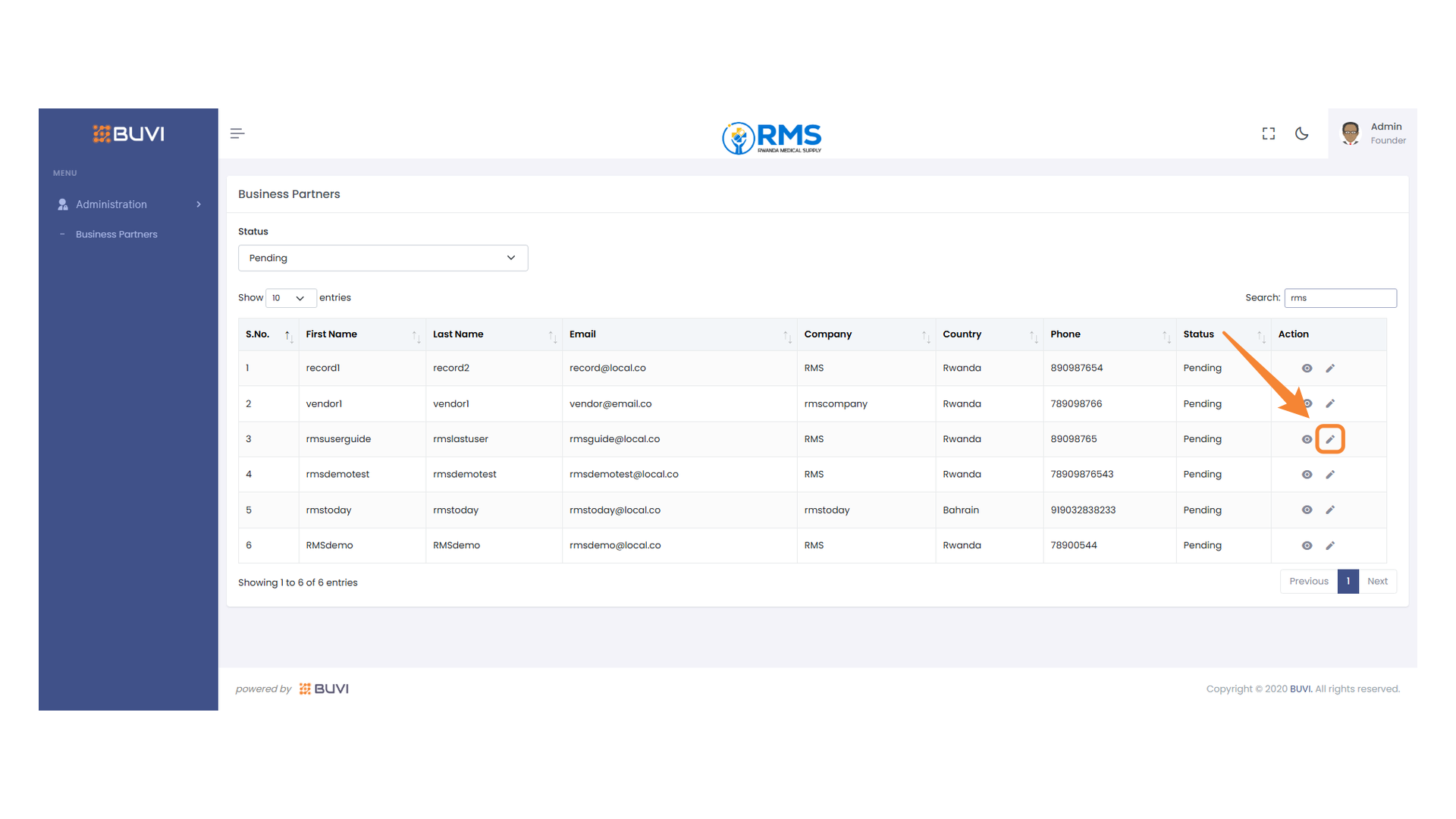
6. Edit Action Icon
Click the pencil icon to edit this entry.
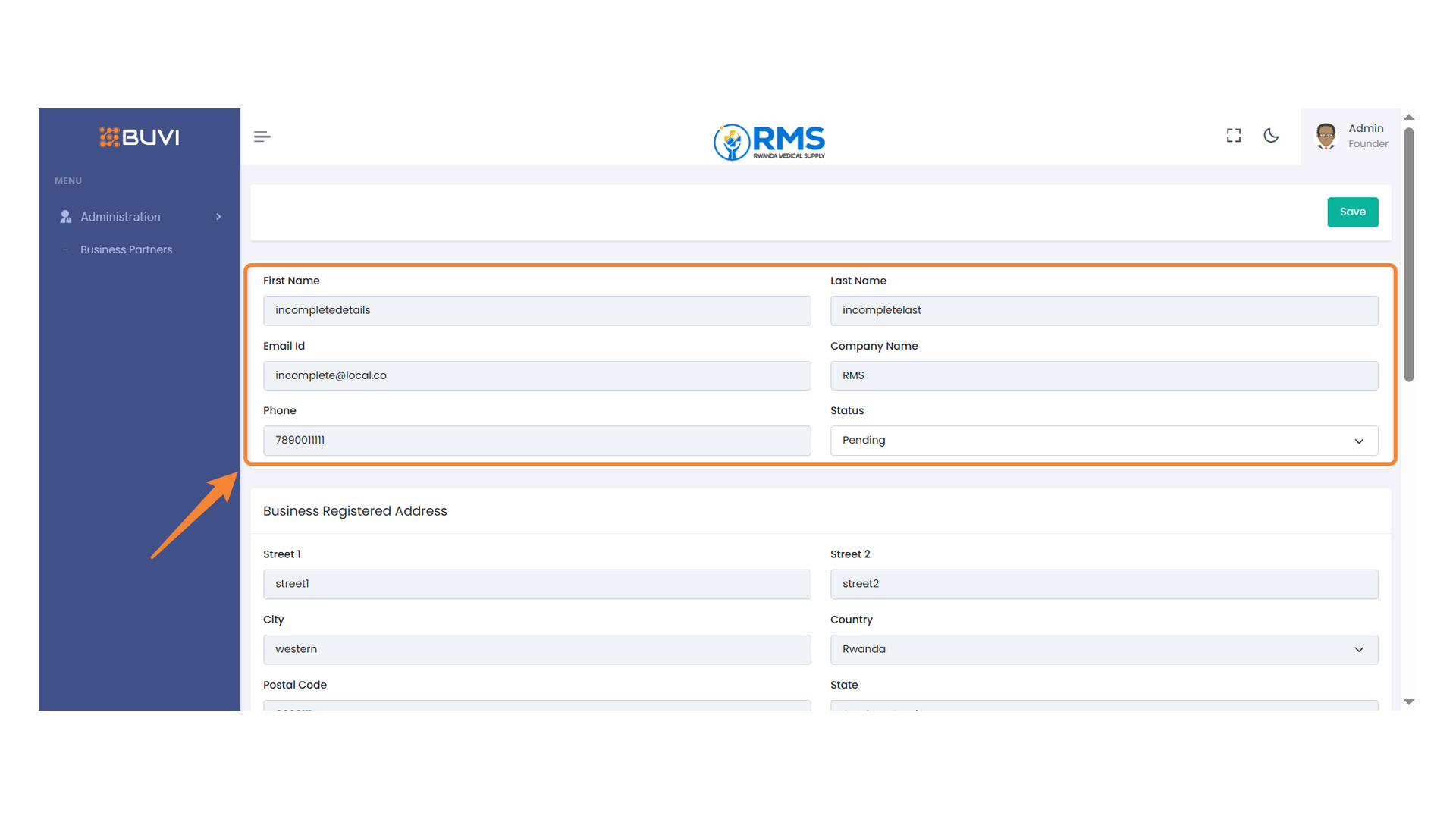
7. User Information Form
Verify the required fields with accurate details.
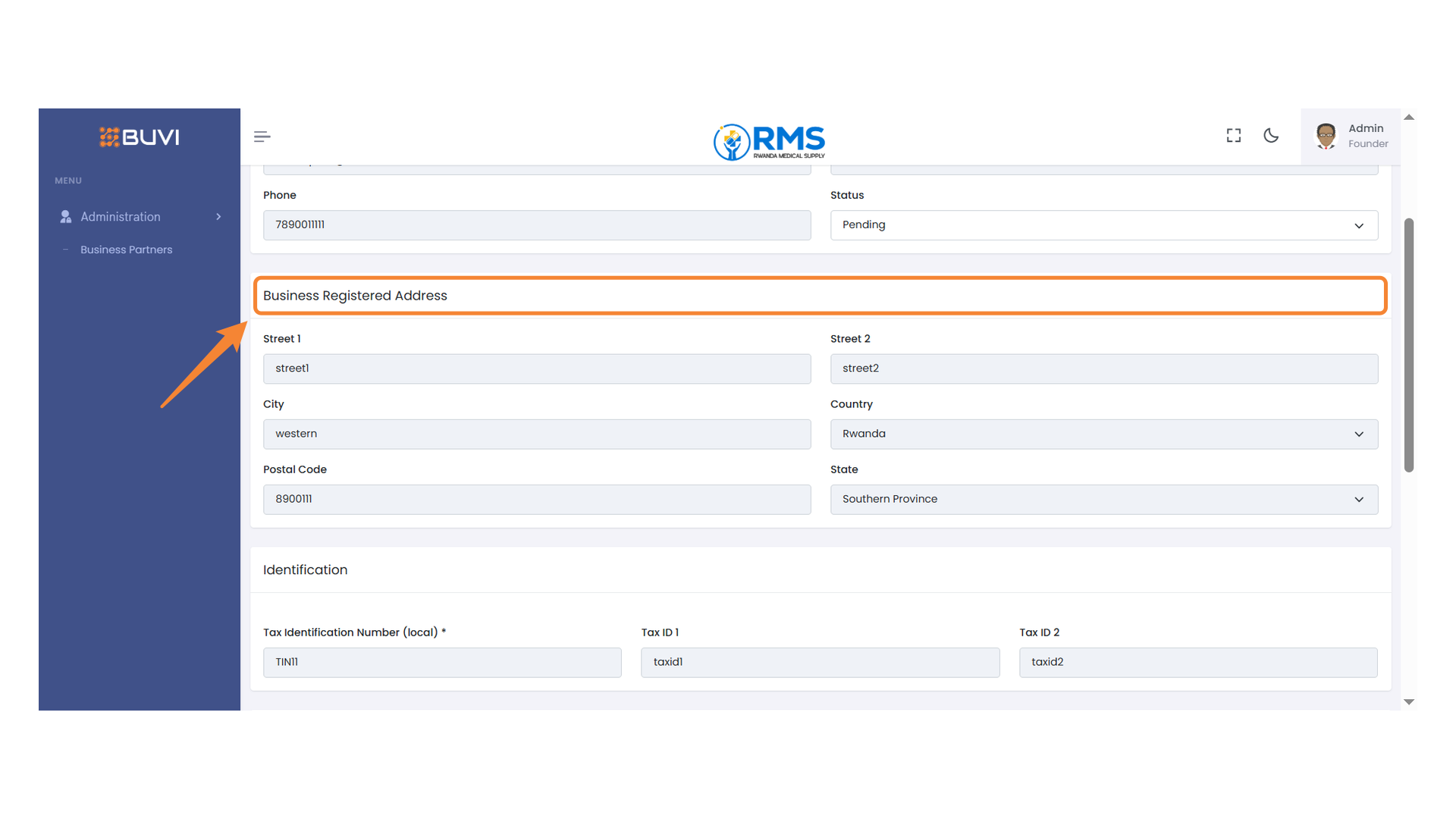
8. Business Address Section
Verify the registered business address details in the provided fields.
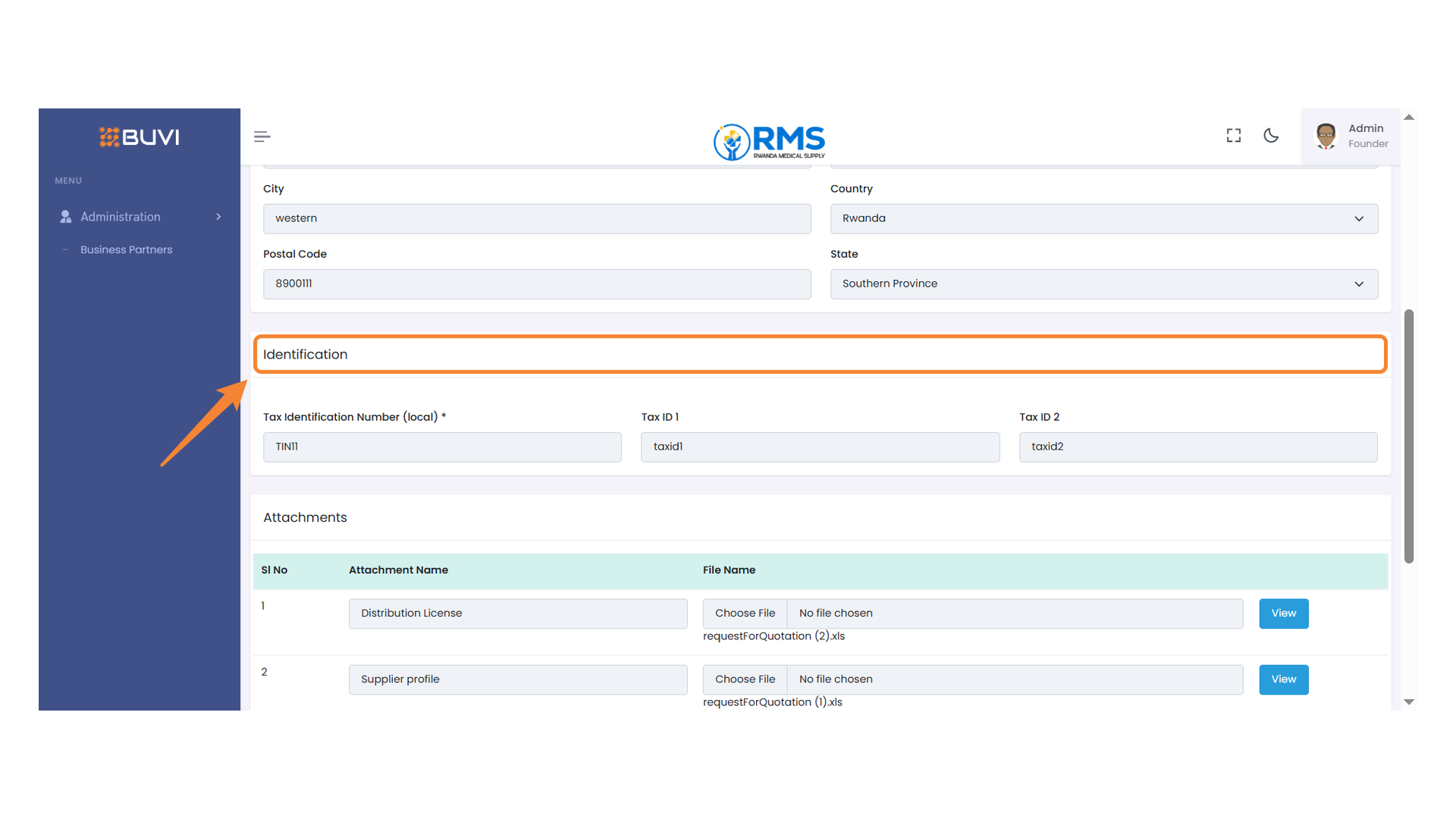
9. Identification Section
Review the identification details and ensure they are accurate.
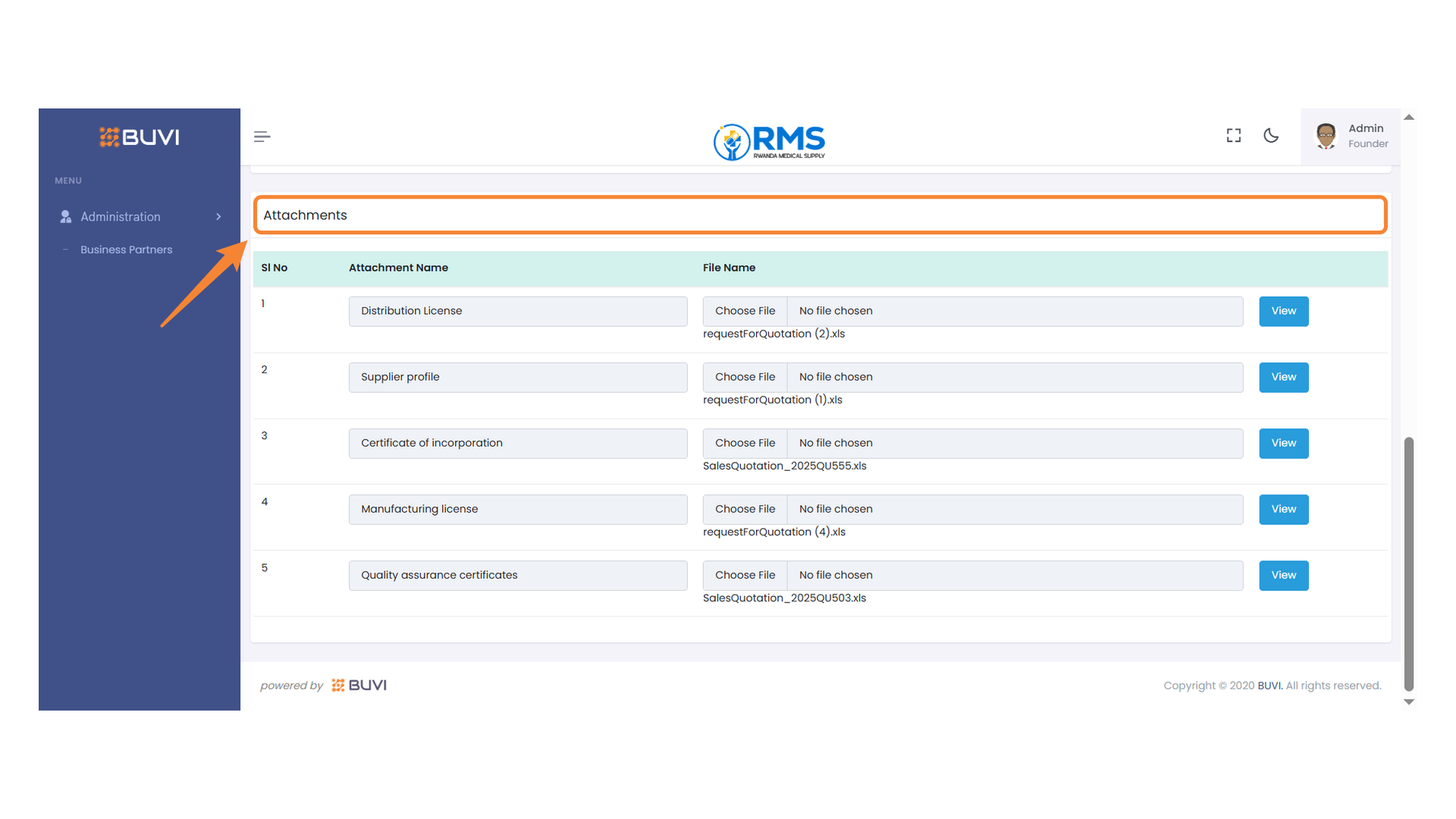
10. Attachments Section
Review and manage the listed attachments in this section.
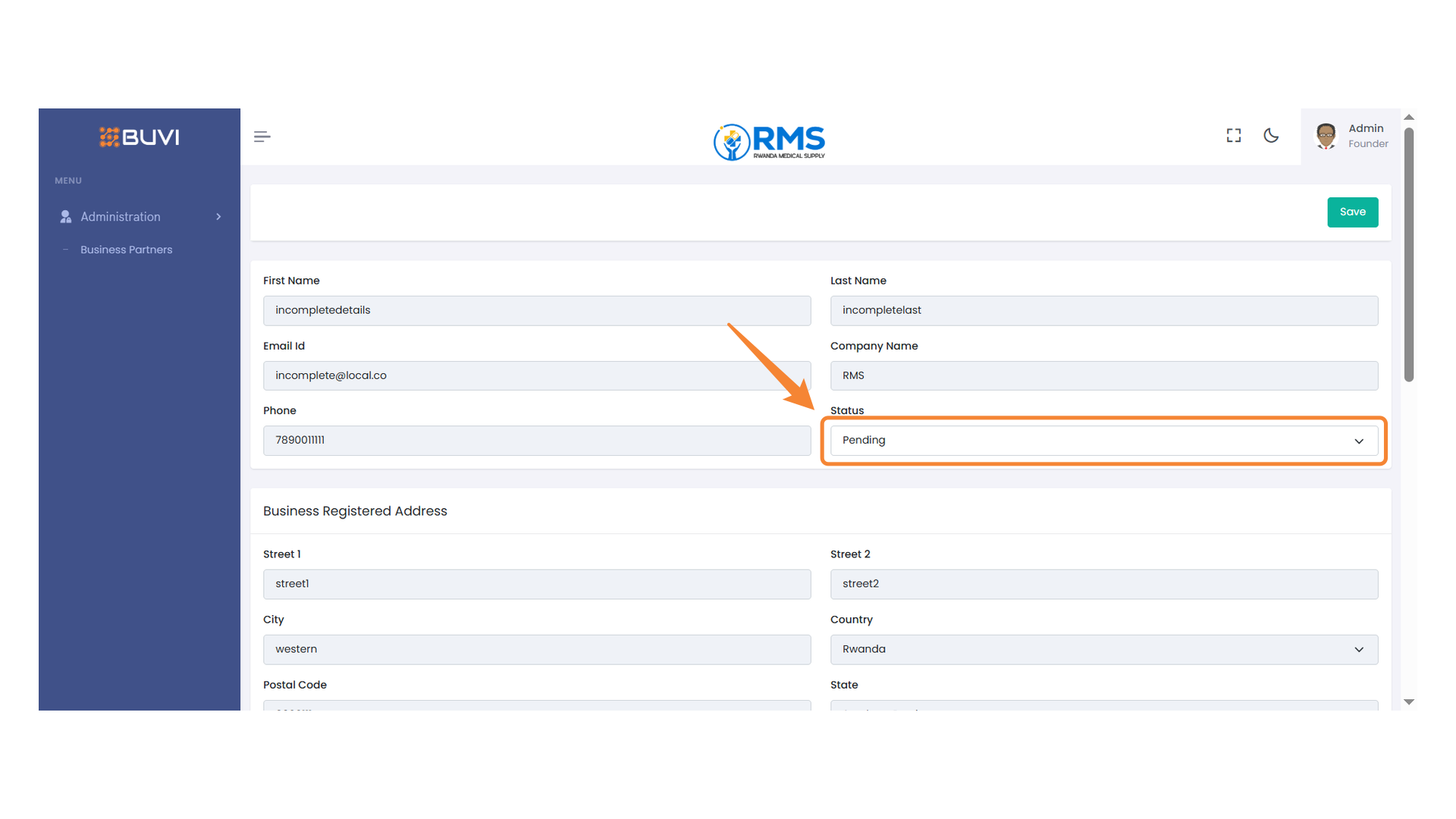
11. Status Selection Field
Select a status as INCOMPLETE for the vendor application.
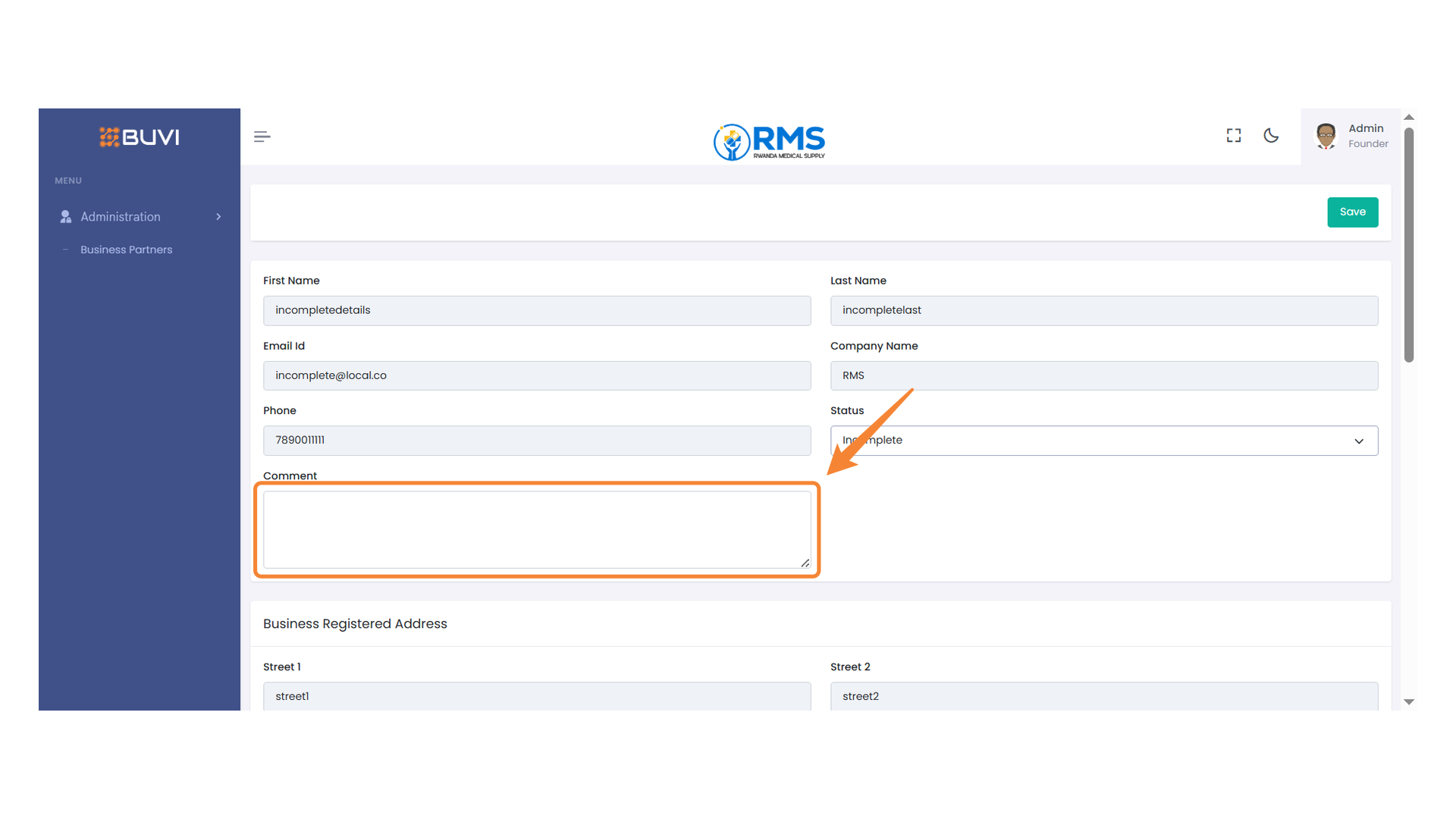
12. Comment Input Field
Enter your comments for incomplete details of the vendor in the comments section
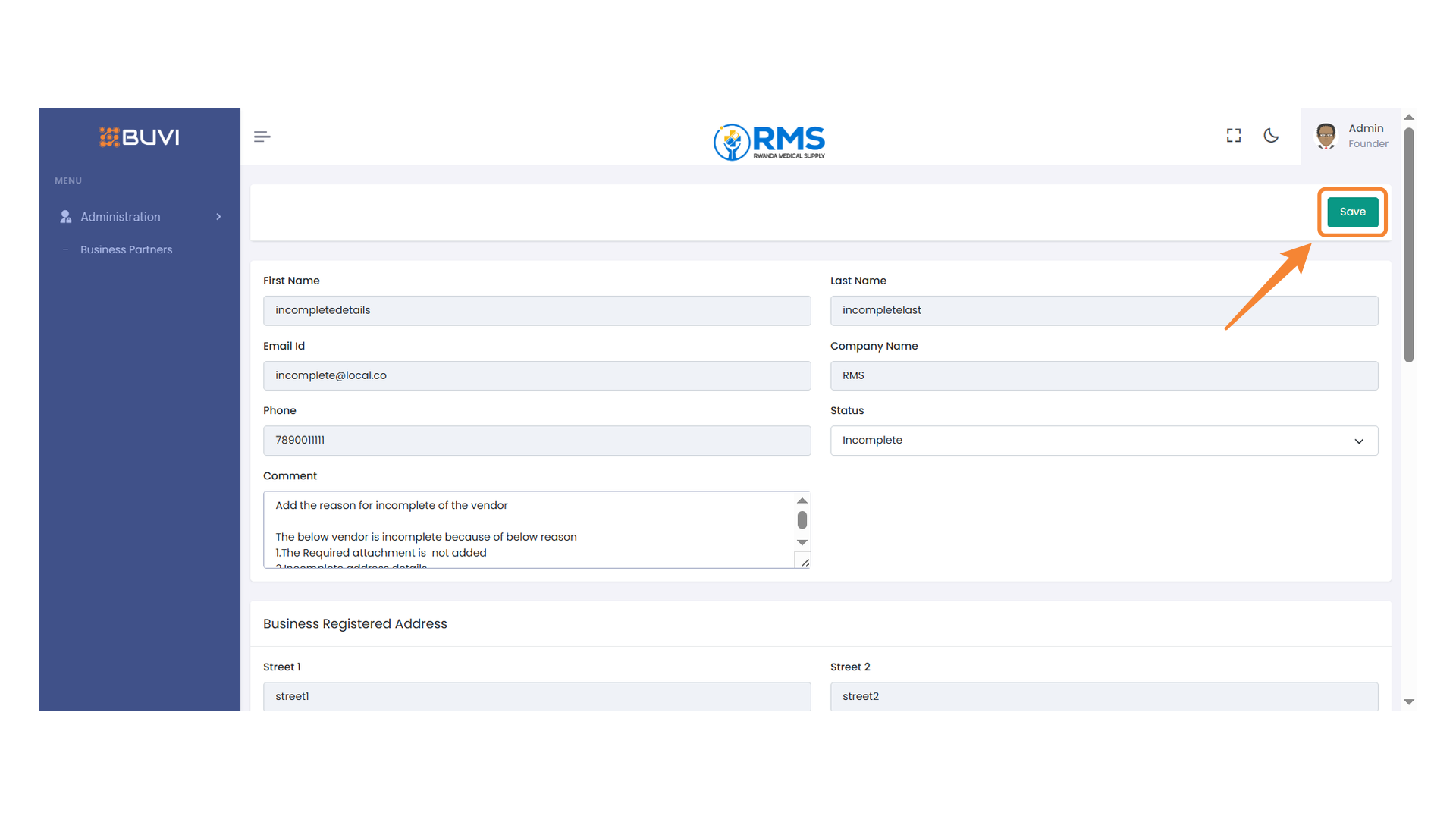
13. Save Button
Click to save your changes.
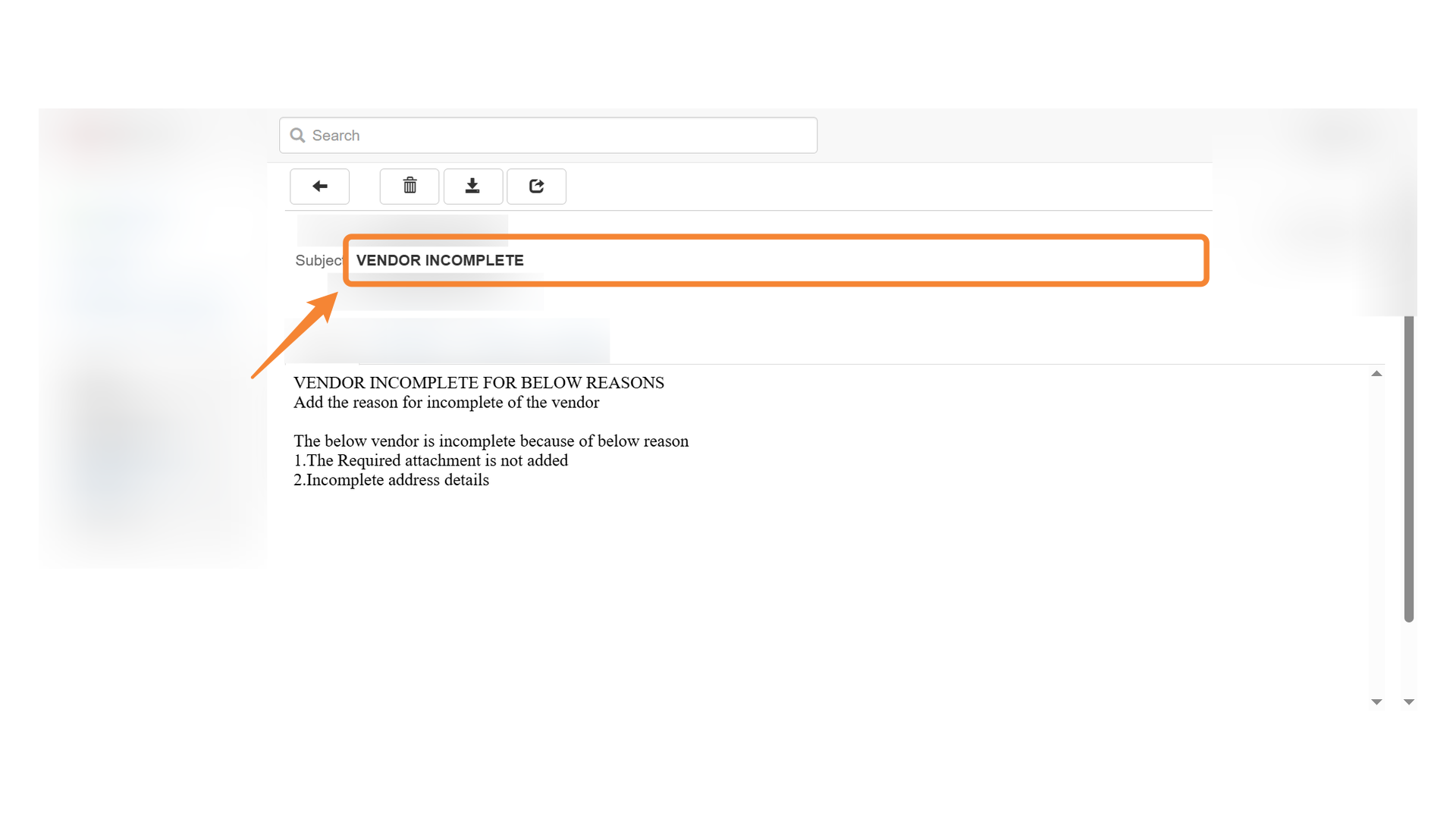
14. Vendor Status Alert
Email will also be sent to Vendor about the Incompleteness of the registration process
Managing Incomplete Vendor details, after resubmission from vendor
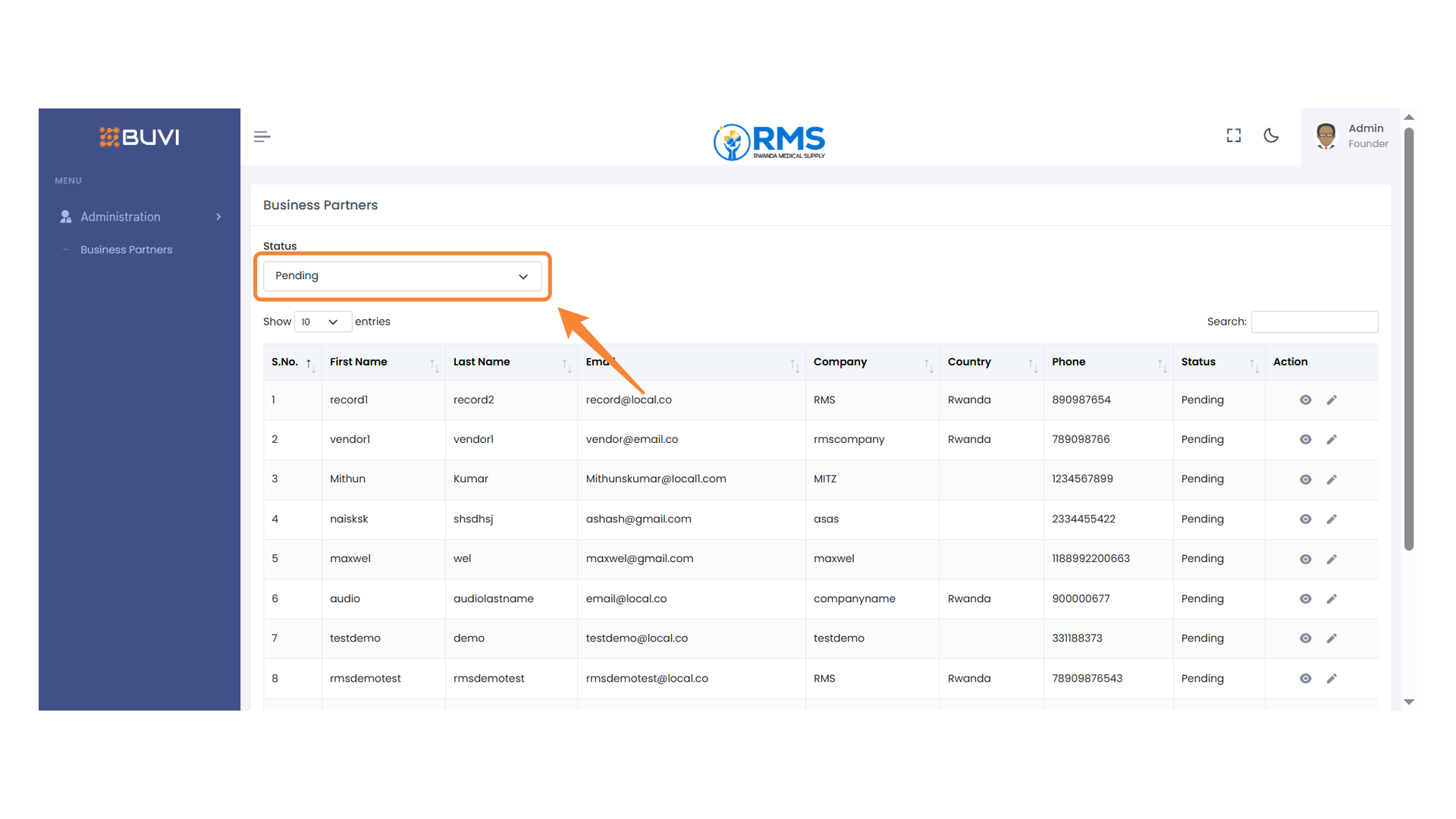
1. Status Filter Dropdown
From the admin interface, Select the 'incomplete' status to filter the list of business partners.
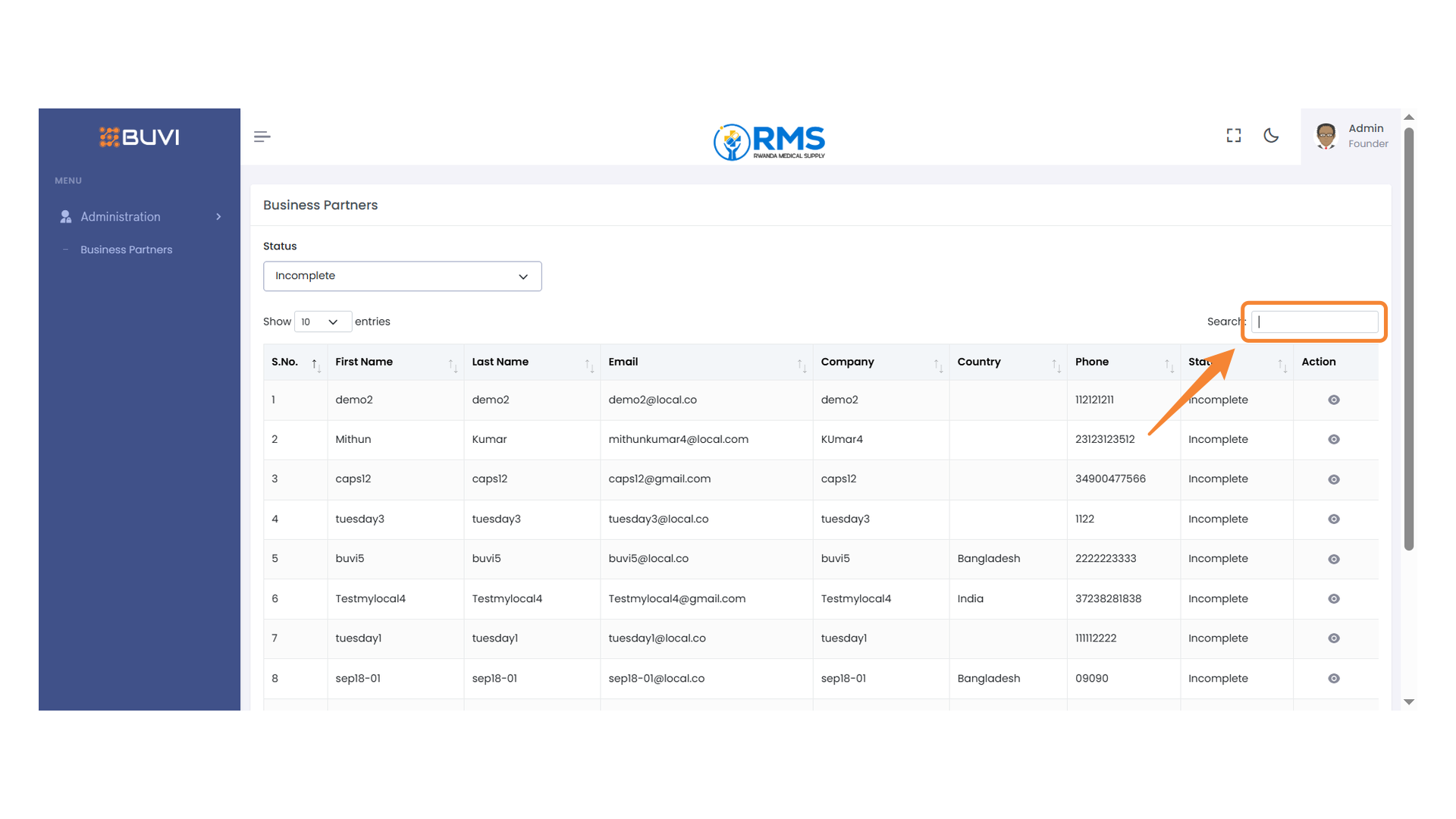
2. Search Field
Search the required business partners from the list to get to the required business partner.
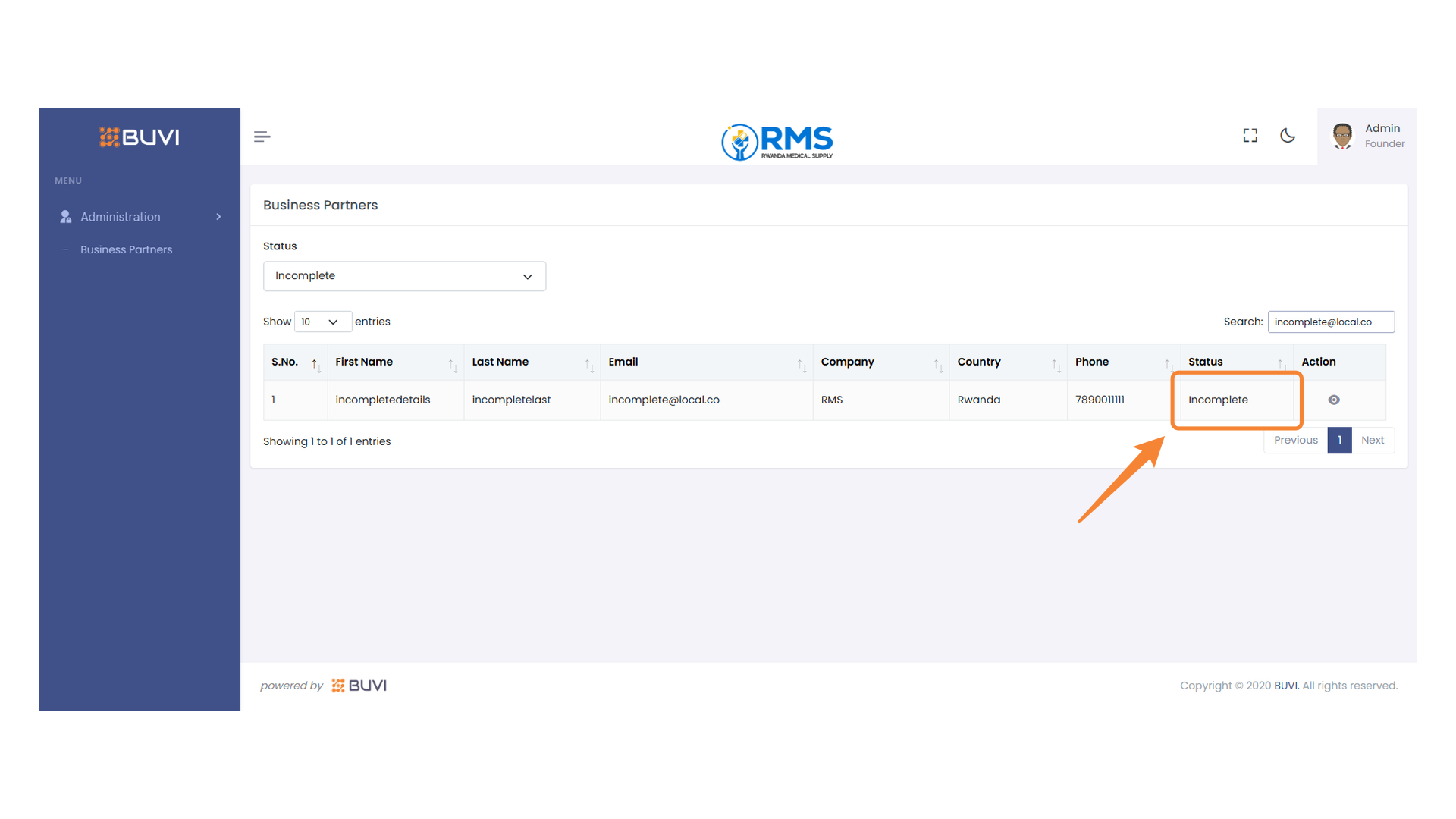
3. Status Indicator
Verify the current status of the entry as incomplete.
4. Submit for Qualification Button
If you find all the infomation as relvant and complete, then Click to proceed with the qualification submission process.
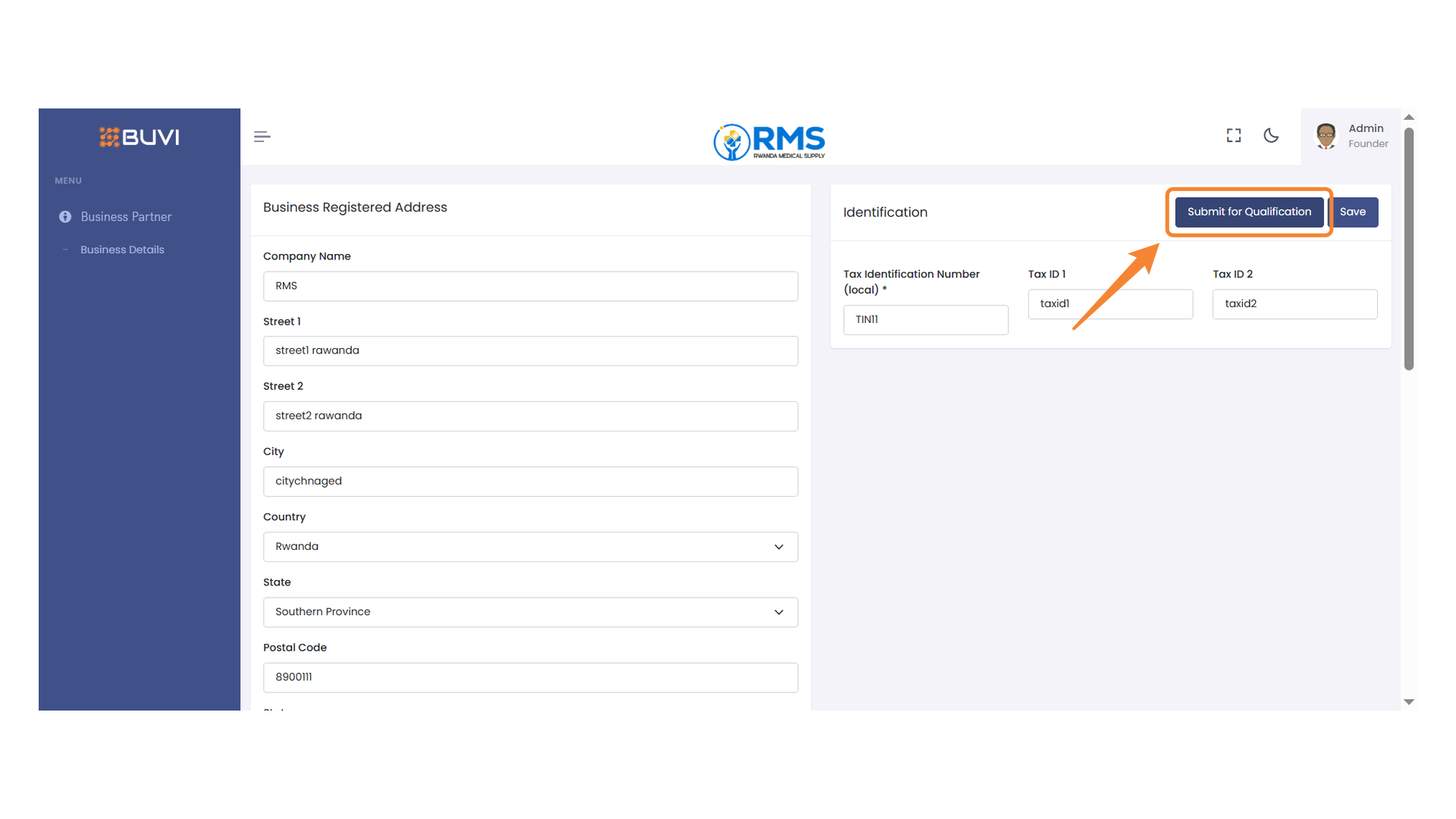
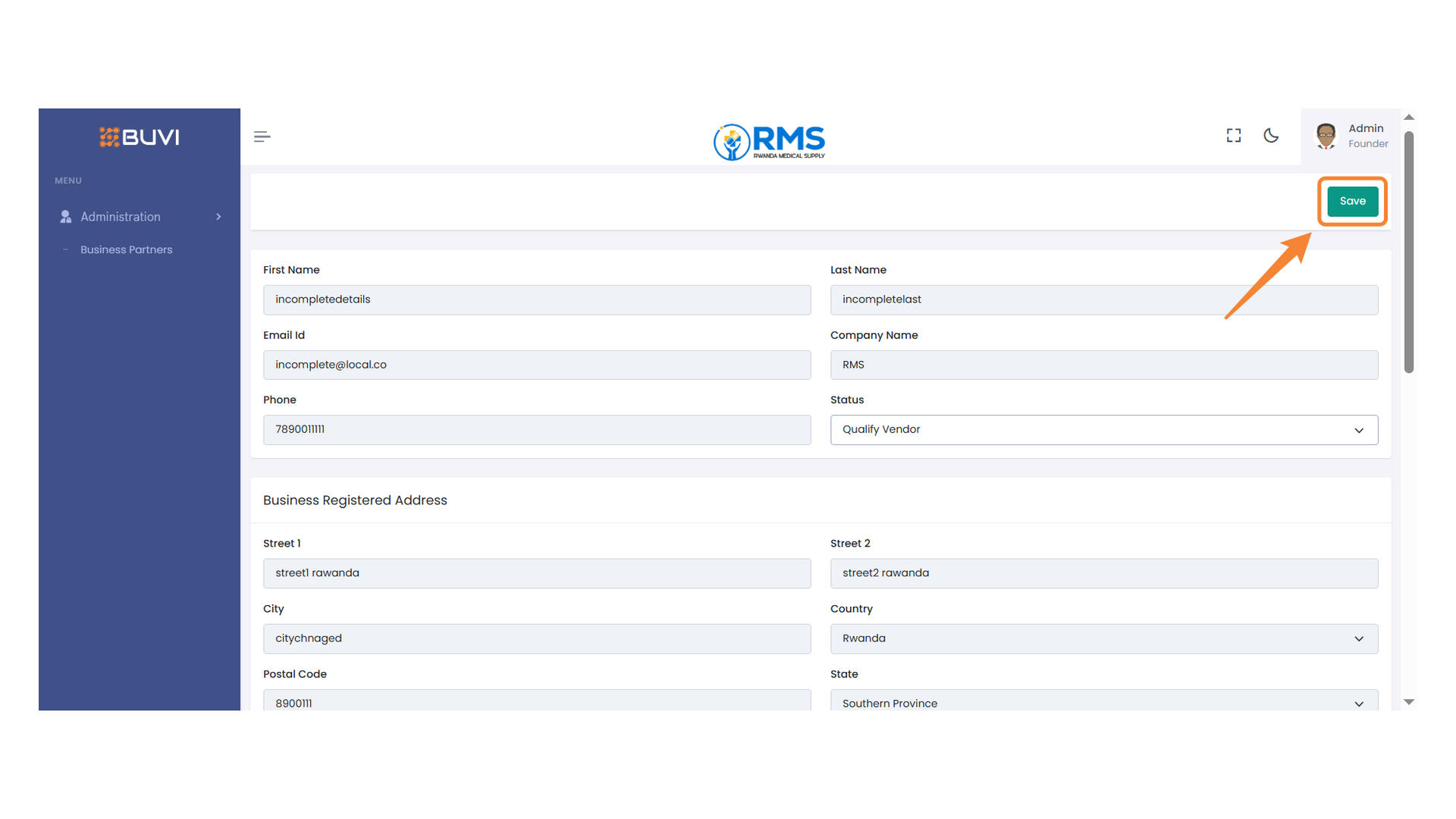
5. Save Button
Click the save button to save a and Qualify the Vendor